
If customers can’t buy tickets, work through these checks in order. Most of them are on your event’s Times & Tickets page:
-
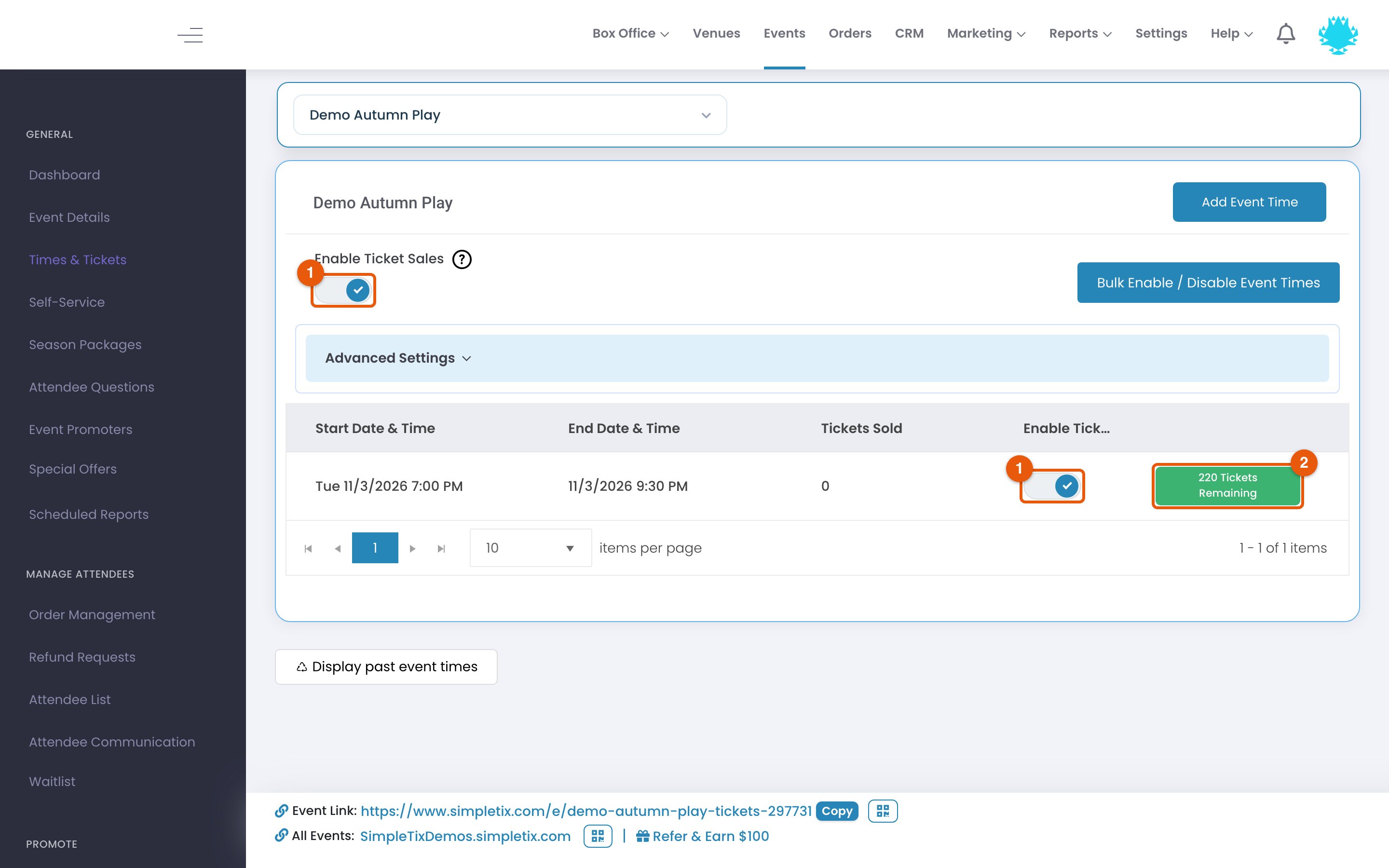
Sales are on for this time. Each time has its own sales switch. Make sure it’s on, and that sales are also enabled for the event.
-
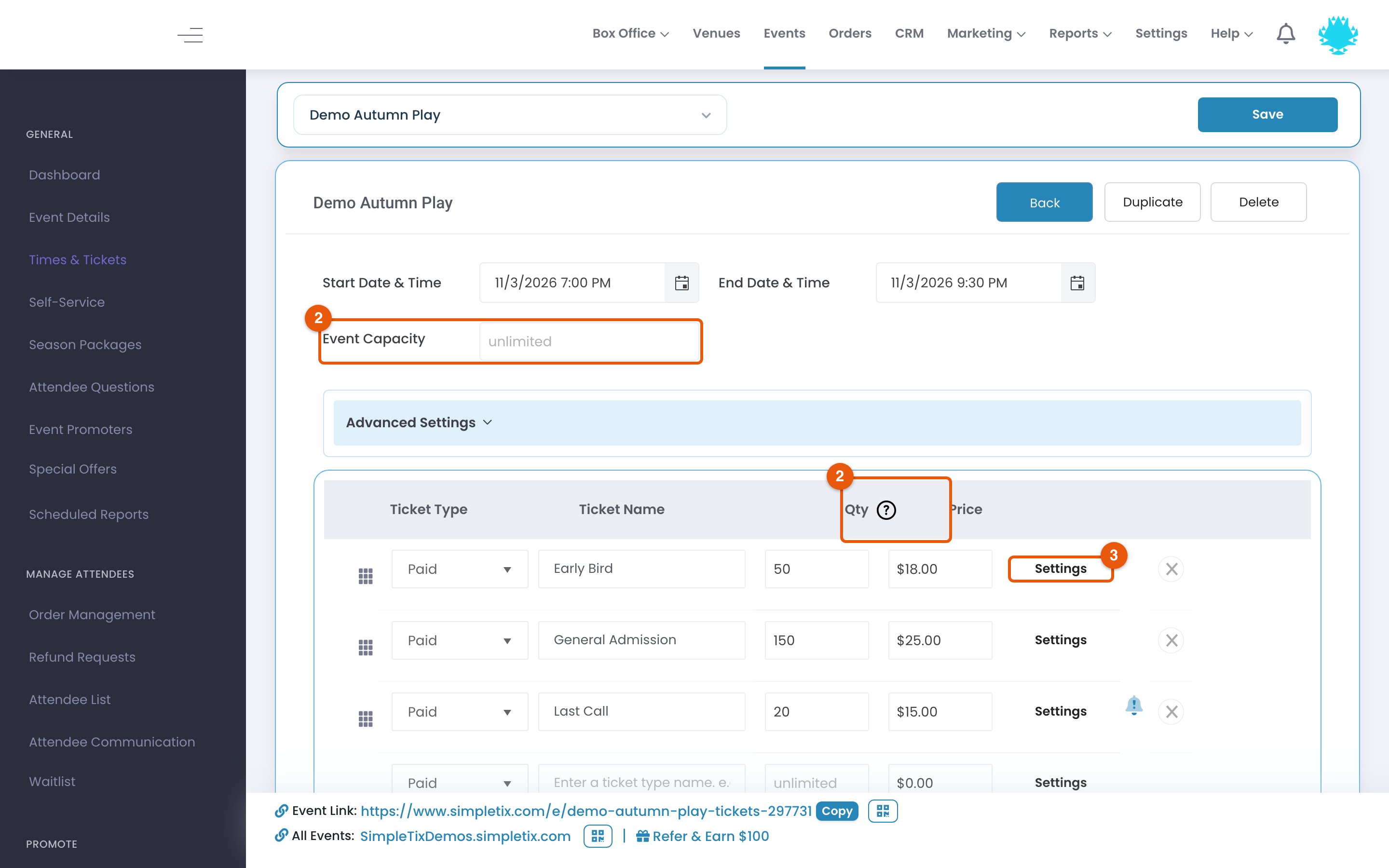
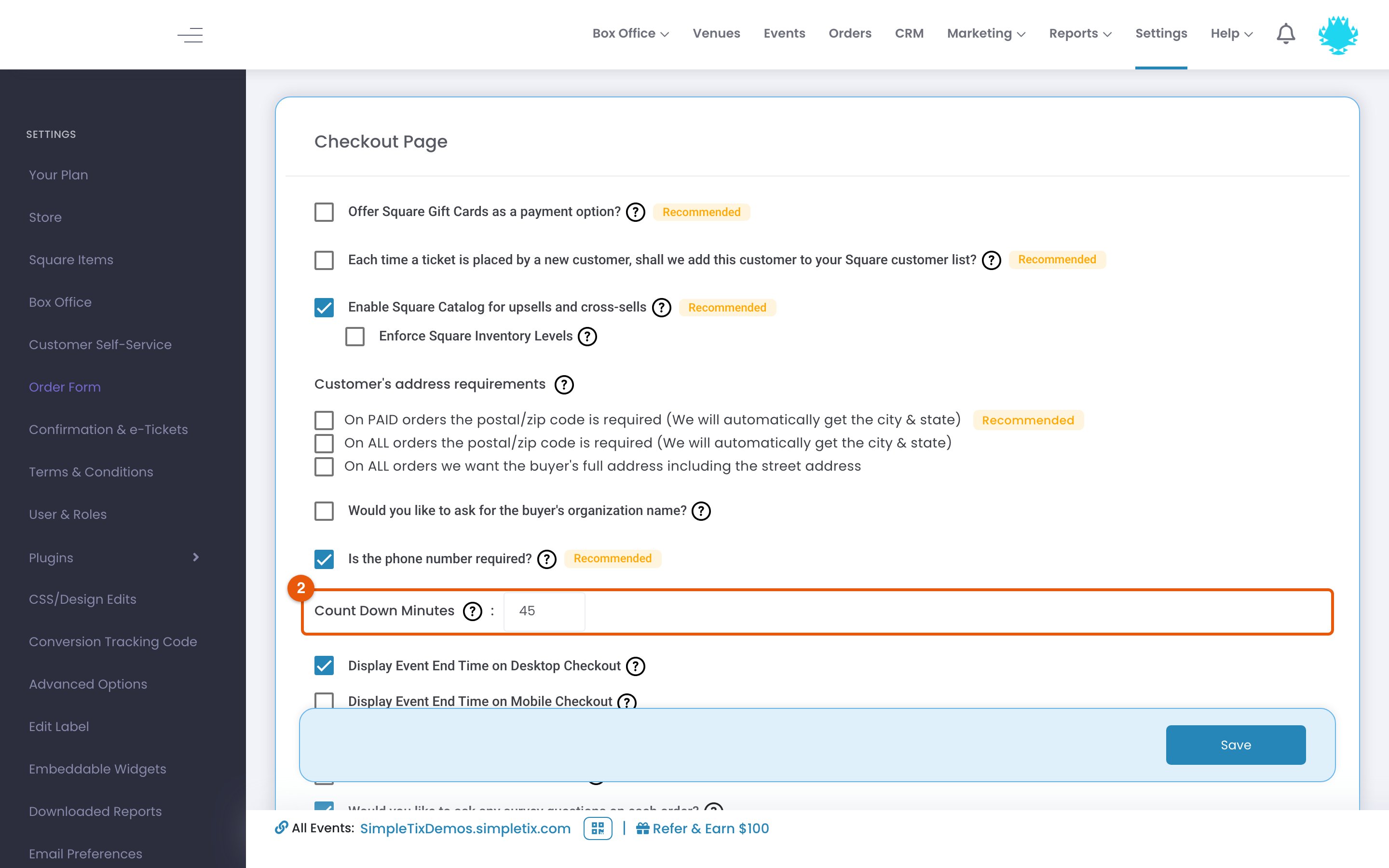
Event Capacity isn’t used up. Check the capacity for the affected time and each ticket type’s available quantity. Click a time’s row to see its Event Capacity and each ticket’s Qty. Tickets in other buyers’ carts are held while they check out. Idle carts go back on sale after about 30 minutes. You can set the checkout countdown from 1–45 minutes with Count Down Minutes under Settings → Order Form.
-
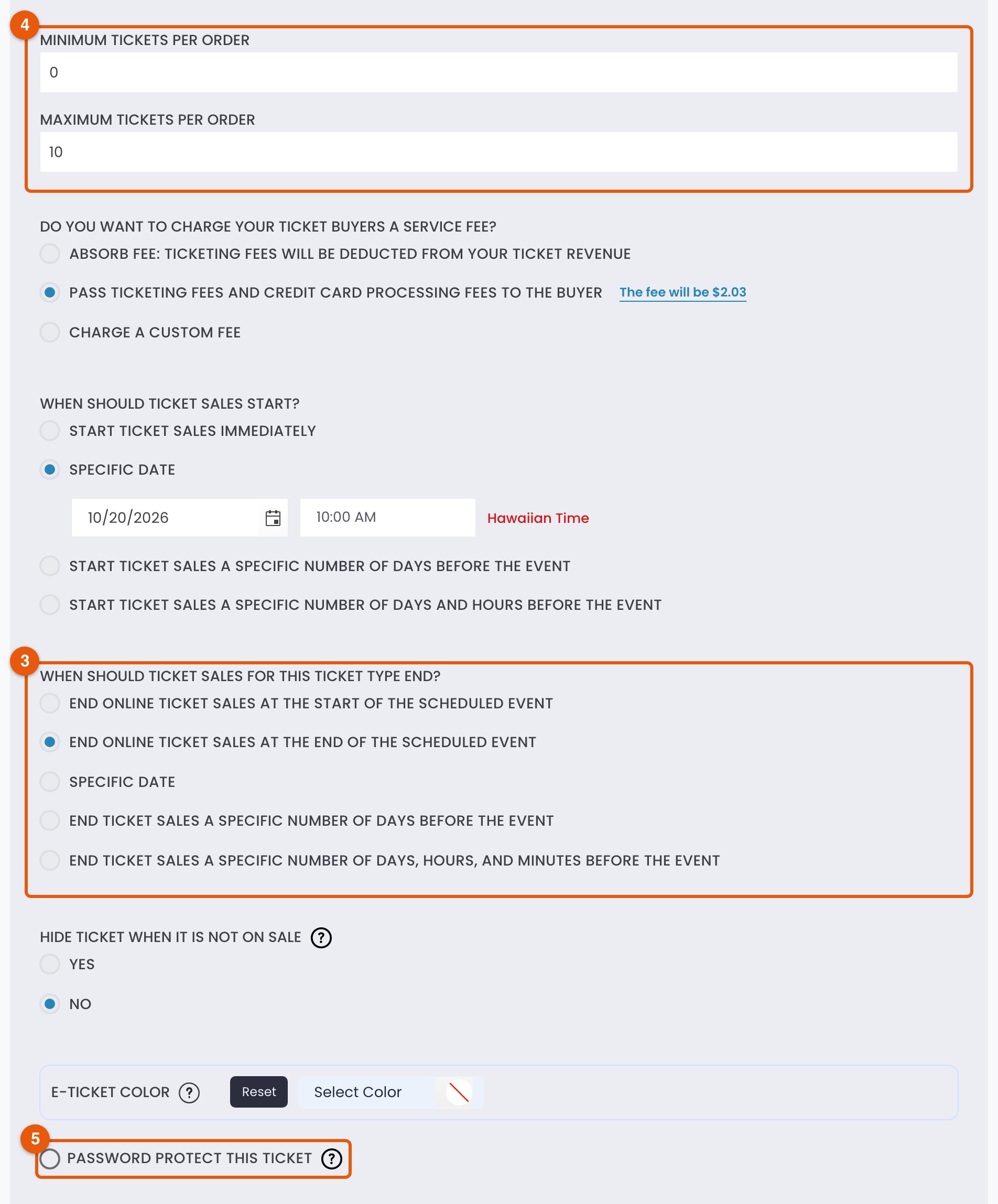
Each ticket’s sale window. Click Settings next to a ticket. Sales can end at event start, at event end, on a specific date, or a set number of days (or days, hours and minutes) before the event. The event date and the ticket sales cutoff are separate settings, so check both.
-
Per-order minimum and maximum. Check each ticket’s purchase limits in its Settings, and the event’s order limit under Times & Tickets → Advanced Settings → Limit the total number of orders per event time. An order-count limit can stop sales even when tickets are still available.

- Password-protected tickets. Look for Password protect this ticket in the ticket’s Settings. Tickets hidden until a password is entered do not appear without the code. If a waitlist is on, it can appear even while those hidden tickets are still available.