> ## Documentation Index
> Fetch the complete documentation index at: https://help.simpletix.com/llms.txt
> Use this file to discover all available pages before exploring further.
# Automatically Schedule Event Reminders & Emails
> Guide for scheduling and managing automatic event reminders and post-event emails through the Manager Portal.
# Automatically Schedule & Send Event Reminders
* Log in to [Manager Portal](https://manager.simpletix.com/).
* Navigate to **Settings > Advanced Options** (or use [this direct link](https://manager.simpletix.com/general/advanced-options)).
* Scroll down to the **Automatically Schedule & Send Event Reminders** section.
* Toggle the option **ON** (or **OFF** if you wish to disable it) and adjust the timing (the default is 1 day before the event).
* Click **Save** at the top of the page to apply your changes.
***
# Ensure Email Reminders Are Enabled for a Specific Event
* Log in to your Manager Portal and select **Events** from the top rail.
* Choose your event and click on **Attendee Communication** in the left rail.
* Verify that the **Send Automatic Event Reminders to Attendees** option is checked.
* *Note:* This uses your system-wide reminder email template.
* To update the content of these reminders:
* Navigate to **Settings > Confirmation & E-tickets > View/Modify Email Templates**.
* Select the **Event Reminder** template from the dropdown.
* Make your changes and click **Save**.
***
# Setting Up Post-Event Emails
## Scheduling Automated Post-Event Emails
SimpleTix offers an automated post-event email feature that sends a message to your attendees after your event has concluded.
Click on the event for which you want to schedule a post-event email from your events dashboard.
Click on **Attendee Communication** in the left-hand navigation rail.
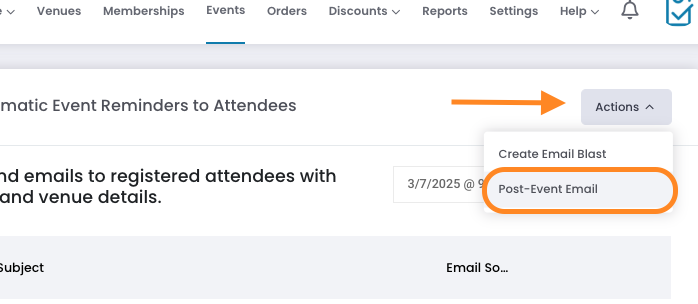
Click on the **Actions** button, then select **Post-Event Email** from the dropdown menu.
 Enter a subject line for your email and specify when after the event you want it to send (e.g., 1 day, 3 days, 1 week).
Enter your email message in the editor. This is a great opportunity to thank attendees, request feedback, or promote upcoming events.
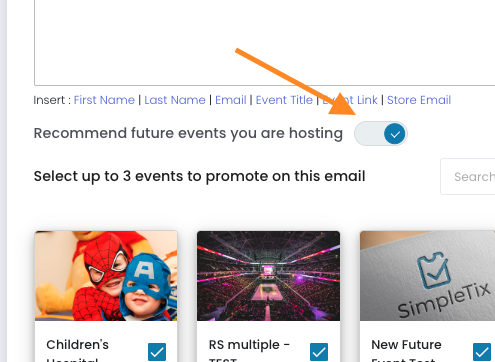
You can include links to future events you're hosting to encourage repeat attendance.
Enter a subject line for your email and specify when after the event you want it to send (e.g., 1 day, 3 days, 1 week).
Enter your email message in the editor. This is a great opportunity to thank attendees, request feedback, or promote upcoming events.
You can include links to future events you're hosting to encourage repeat attendance.
 Click **Save** to queue this email to send automatically on your specified schedule after the event concludes.
## Using the Post-Event Email Template
* SimpleTix includes a pre-designed **Post-Event Follow Up** template.
* To modify this template:
* Go to **Settings > Confirmation & E-tickets > View/Modify Email Templates**.
* Select the **Post-Event Follow Up** template.
* Changes here will automatically update future follow-ups.
* Ensure that during event creation, you enable the option for automatic post-event follow-up (if available in your event settings dropdown) so that attendees receive the follow-up without manual intervention.
## Post-Event Surveys
Post-event emails are ideal for including survey links to gather attendee feedback.
To include a survey in your post-event email:
1. Create your survey using your preferred tool (SurveyMonkey, Google Forms, etc.)
2. Copy the survey link
3. Include the link in your post-event email message
4. Add clear instructions for attendees to complete the survey
***
# Managing Email Reminders for Multi-Day or Recurring Events
* Reminders are tied to the specific event time.
* For multi-day or recurring events, consider creating individual event times for each session if different communications are needed.
* Alternatively, use the **More Options** in the **Attendee Communication** area to target specific dates and times.
* This approach avoids sending multiple or conflicting reminders and ensures each session receives the correct communication.
***
# Handling Zoom Link Details for Multi-Session Events
* For events involving multiple sessions or Zoom links, ensure that the correct link is sent to attendees.
* Use custom fields or include the Zoom link directly in the event description so that the correct session details are included in the email templates.
* If a Zoom link needs to be updated post-scheduling, resend the event communication using a manual email blast through the event’s **Attendee Communication** section.
***
# Contact Event Organizer Email – Clarification
* The **Contact Event Organizer** email is managed within **Settings > Store**.
* This email not only goes to the site owner but can also be customized according to your needs at the store level.
* When customizing, ensure that changes are saved correctly and note that this setting applies site-wide.
Learn how to customize your reminder email templates.
SimpleTix automatically sends recovery emails to customers who abandon checkout.
Click **Save** to queue this email to send automatically on your specified schedule after the event concludes.
## Using the Post-Event Email Template
* SimpleTix includes a pre-designed **Post-Event Follow Up** template.
* To modify this template:
* Go to **Settings > Confirmation & E-tickets > View/Modify Email Templates**.
* Select the **Post-Event Follow Up** template.
* Changes here will automatically update future follow-ups.
* Ensure that during event creation, you enable the option for automatic post-event follow-up (if available in your event settings dropdown) so that attendees receive the follow-up without manual intervention.
## Post-Event Surveys
Post-event emails are ideal for including survey links to gather attendee feedback.
To include a survey in your post-event email:
1. Create your survey using your preferred tool (SurveyMonkey, Google Forms, etc.)
2. Copy the survey link
3. Include the link in your post-event email message
4. Add clear instructions for attendees to complete the survey
***
# Managing Email Reminders for Multi-Day or Recurring Events
* Reminders are tied to the specific event time.
* For multi-day or recurring events, consider creating individual event times for each session if different communications are needed.
* Alternatively, use the **More Options** in the **Attendee Communication** area to target specific dates and times.
* This approach avoids sending multiple or conflicting reminders and ensures each session receives the correct communication.
***
# Handling Zoom Link Details for Multi-Session Events
* For events involving multiple sessions or Zoom links, ensure that the correct link is sent to attendees.
* Use custom fields or include the Zoom link directly in the event description so that the correct session details are included in the email templates.
* If a Zoom link needs to be updated post-scheduling, resend the event communication using a manual email blast through the event’s **Attendee Communication** section.
***
# Contact Event Organizer Email – Clarification
* The **Contact Event Organizer** email is managed within **Settings > Store**.
* This email not only goes to the site owner but can also be customized according to your needs at the store level.
* When customizing, ensure that changes are saved correctly and note that this setting applies site-wide.
Learn how to customize your reminder email templates.
SimpleTix automatically sends recovery emails to customers who abandon checkout.